 |
|
 Home
Home User Manual
 Discussion Forum
 Search
Plug-in Framework
Plug-ins are a way for certain large organizations to add custom fuctionality for internal use without forking the code. If you are a DSO, for example, and you want to develop your own plug-in for internal use, then you can call us to have a discussion about it and possibly get whitelisted if seems like an appropriate scenario. Plug-ins are difficult to write and there is a very high learning curve. Plug-ins are an extension of the Program Links framework.
Whitelisting
All plug-ins must be Whitelisted starting with version 21.4 or the dll will not load.
Old third party plug-ins that are not whitelisted have been phased out. All third parties should use use the API. Our Database Integrity feature enforces the rule against altering the database.
Hooks
In addition to the obvious buttons from Program Links, other hooks are allowed. Hooks need to be requested directly from our team. We do not add hooks to the OpenDentBusiness project.
Database
A plug-in can connect to the database through the framework and does not need to manage database connection info. If the plug-in makes use of extra database tables, the plug-in dll needs to create and manage those tables. If a developer is releasing a plug-in for others to use, they will probably want to maintain multiple versions, one for each minor release.
Limitations
- Plug-ins should not make changes to existing database tables. Plug-ins will have to use their own tables instead.
- Plug-ins should not extend existing enumerations.
- Plug-ins cannot add their own Security permission types.
Security
Only an administrator can enable a plug-in. This avoids the potential problem of malicious plug-ins being created to hack the database. Because plug-ins will not work with our Middle Tier, the security will not be acceptable for enterprise situations. The plug-in framework will have to be enhanced later for enterprises.
Example Code
- Download the desired version of Open Dental from GitHub (https://github.com/OpenDental/). This will include a PluginExample folder which contains the example code.
For versions older than 23.3, download the PluginExample solution (https://opendentalsoft.com:23793/svn/opendental/PluginExample/) using Tortoise. Put the PluginExample folder in a folder next to the head folder, just like it is in our Subversion folder organization. - Username: guest
- Password: od123
- Open the solution (.sln file).
- Change configuration to Debug x86.
- You may get some errors. Errors regarding metadata files can be fixed by opening the OpenDental head solution and building it in Debug x86, then returning to this solution.
- Errors regarding bad references can be fixed by removing those references, and readding the, pointing to the correct dll in the Required dlls folder.
- In Solution explorer, right click on the project, Edit Properties. Go to the Build Events tab, and edit the post-build event command line. Carefully fix the absolute path to the batch file that is included with the example. You can also comment out the line with REM temporarily.
- Find the batch file using Windows explorer. Right click, edit. Carefully fix the absolute paths contained within it.
- Try to build. If no errors, PluginExample.dll will now be found in the debug folder of OpenDental head.
- Set the Open Dental project to be the startup project (right click).
- Enable the plug-in by adding a Program Link as described below.
Installation
In the Main Menu, Setup, Program Links, add a new program link and fill it out as shown below.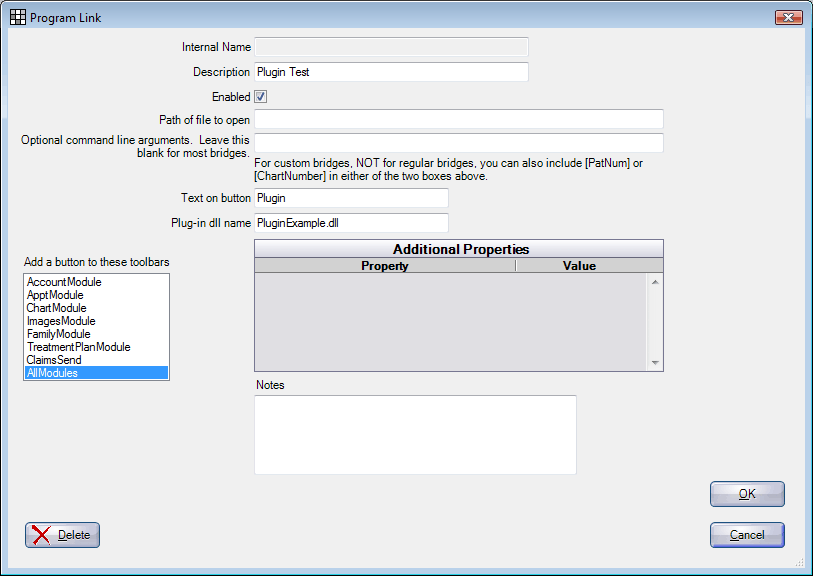
Restart Open Dental.
Features in the Example
If the example is installed as described above, the following features should be functional:
- Patient edit window replaced with an alternate. It's an obvious switch. The new one has only one field in it, but that field is fully editable.
- In Account module, hover over the "Family Aging" label at the upper left to see a floating pane with an insurance breakdown in it. The info in that pane is entirely under the control of the plug-in.
- In the Chart module patient info grid, all referrals show instead of just referred from. Unfortunately, the replaced Patient Edit window makes it hard to test this feature. You may need to turn off the plug-in, set up a few referrals for a patient, then turn the plug-in back on to see the effect.
- A database table called jss_dev_myveryuniquetable will be created, and the plug-in version will be managed via an entry in the preference table called Plugin_JSS_DataBaseVersion.
- Pushing the toolbar button for the plug-in launchs a form.
Hints for Programmers
When using a plug-in, some things are done a little differently.
- To access the private controls on an existing form from outside the form, look through the public Controls property as shown in the posted example.
- Your new classes will have static methods that get called from the plug in. One option for implementing the other necessary members of the class that don't get called directly from the plug-in is to use the singleton pattern. As in the example, a static instance of the class is stored within itself. All the non-static members in the class can then be accessed through that instance. Pay attention to static vs. non-static if you do this. It's a little trickier than in the main program.
- More of your methods and variables will probably be public.
- If managing your own database tables, remember that the plug-in may be turned off and then turned back on a few versions later. So you can't depend on the same pref that tracks database version. You will have to store your own database version pref. If you add rows to the preference table, be sure that they are very very unique. Make sure to prefix them with a string that would be impossible for us to accidentally duplicate, as we did in the example.
Patterns
Our programmers add all requested hooks. We have documented very specific Plug-in Patterns that we will follow when adding hooks. Users requesting hooks must understand these patterns in order to intelligently make hook requests.
DLL Naming
If the dll includes a double underscore (__) in its name, then it will be excluded from the file copy routine during an update. This allows the developer of a plug-in to control their own file distribution. This is frequently used with the technique described below for loading version-specific dlls.
There is a trigger available that will load a recently distributed dll. To turn on the trigger, use [VersionMajMin] in the plug-in name. For example, the plug-in might be entered as MyPlugin[VersionMajMin].dll. The bracketed section will be removed when loading the dll. So it will look for MyPlugin.dll as the dll to load. However, before it loads, it will look for a similar dll with a version number. For example, if using version 14.3.23, it would look for MyPlugin14.3.dll. If that file is found, it would replace MyPlugin.dll with the contents of MyPlugin14.3.dll, and then it would load MyPlugin.dll as normal. In a typical setting, this copy sequence gets triggered every time Open Dental starts up, ensuring a fresh copy of the dll. If Open Dental is on a newer version, and the dll is still on an older version with no matching [VersionMajMin], then Open Dental will attempt to load the old MyPlugin.dll.
The [VersionMajMin] naming may also be used to centrally distribute your plug-in. First, manually create a Plugins folder in the AtoZ folder, then put your plug-in dll into that location. So the centralized dll may be available at a location similar to this: \\server\OpenDentImages\Plugins\MyPlugin14.3.dll. Open Dental will find this dll and copy it to the local application folder as MyPlugin.dll. It will not do this if it first finds MyPlugin14.3.dll in the local application folder. Using this technique allows you to put the dll into one place on the local network and have it automatically distributed to all computers. You can even program the dll itself to put the new dll into the Plugins folder after downloading it from some internet location. Once a new dll is placed into Plugins, Open Dental should be forcefully closed on all workstations to cause them each to update the dll. The dll updates will not be done at the same time as an Open Dental version update, but instead separately. Since the dll will be freshly copied to each workstation every time OpenDental starts up, using this distribution technique can cause a slight delay when starting up.
If you get an error about "Access to the path 'C:\Program Files (x86)\Open Dental\MyPlugin.dll' is denied", then it means you will need to launch Open Dental as Admin each time.
Finally, there is always the very simple strategy of manually placing the dll into the application directory on each workstation. In this case, there would be no special file naming and no exclusion from the updates using a double underscore.
Update Sequence
The normal behavior of Open Dental is as follows:
- Any workstation may initiate a version update.
- The Workstation Shutdown window is displayed to the user. When user clicks Continue, a row is inserted into the Signal table telling the Open Dental programs running on the other workstations to shut themselves down.
- preference.UpdateInProgressOnComputerName is set to the name of the computer that initiated the update. This locks other users out.
- Setup.exe is downloaded and run automatically.
- User manually starts up Open Dental again.
- Sometimes, especially if jumping to a new major or minor version, a database update will automatically run. Not common for a build update.
- Open Dental will recognize that a new version is installed by comparing with preference.ProgramVersion.
- The entire AtoZ\UpdateFiles folder is deleted. If it can't delete the folder for some reason, the user will be informed, and Open Dental will exit.
- A fresh UpdateFiles folder is created.
- All files are copied from the current application folder to the UpdateFiles folder except: FreeDentalConfig.xml, OpenDentalServerConfig.xml, any file that starts with 'openlog', and any file containing a double underscore (__). Also, folders are not copied.
- Manifest.txt file created in UpdateFiles folder. Contents are very simple. For example: 7.2.5
- preference.ProgramVersion updated to new version.
- preference.UpdateInProgressOnComputerName set to empty string. This allows other workstations to connect.
- When another workstation connects, it recognizes that preference.ProgramVersion does not match.
- It checks Manifest.txt to see if the files for the needed version are available.
- If the version in Manifest.txt matches, then UpdateFileCopier.exe is launched and OD closes.
- UpdateFileCopier copies all files from UpdateFiles folder into its own application directory, including OpenDental.exe and UpdateFileCopier.exe.
- OpenDental is automatically launched, and UpdateFileCopier automatically shuts down.
- Because preference.ProgramVersion now matches, OD starts up normally.