


Rx / Prescriptions List
Use the prescription list to create templates for prescriptions that the practice commonly writes.
In the Main Menu, click Lists, Prescriptions.
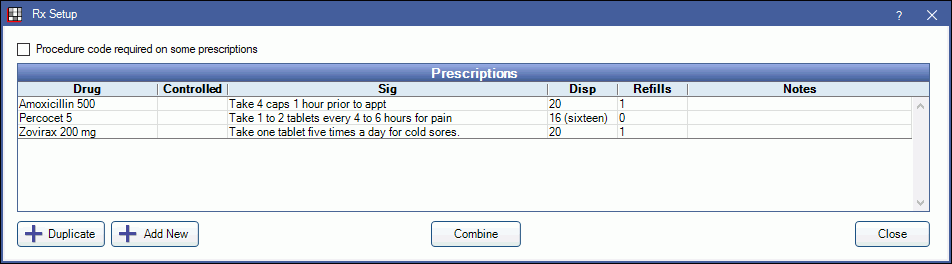
The template can include dosage, refills allowed, notes, and drug interaction alerts based on medications, problems, and/or allergies. Templates can be freely deleted or changed without changing any patient data. Users can also write prescriptions that are not in this list, so not every possible prescription must be added.
Related Links:
Create the Rx List as prescriptions are needed.
- Procedure code required on some prescriptions (Optional). Check to enable the preference behavior. See Rx / Prescription, Procedure Code Required on Prescriptions for detailed instructions.
- Duplicate: Copy the currently selected template. The Edit Rx Template window will open to make edits.
- Add New: Click to add a new prescription.
- Combine: Select two or more prescriptions to combine. See: Combine Prescriptions.
Add a Prescription
Click Add to add a new prescription, or double-click a prescription to edit.
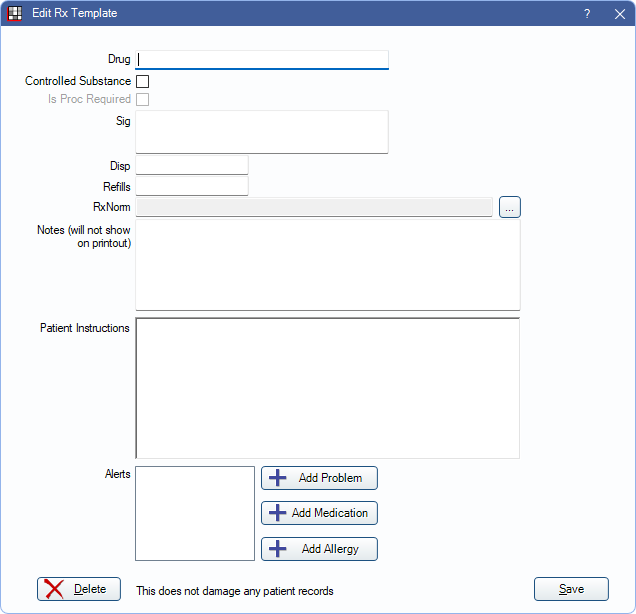
- Drug: The name of the drug.
- Controlled Substance: Check this box to display the provider's DEA# on the printed prescription.
- Is Proc Required: Check this box to enable this preference automatically on the Edit Rx every time this drug is prescribed. See Rx / Prescription. Useful for states that require a procedure code on prescriptions.
- Sig: Directions for the preparation and use of the drug.
- Disp: How much of the drug to dispense (e.g. how many tablets, volume).
- Refills: Number of refills allowed.
- RxNorm: Click [...] to select a normalized RxNorms drug name.
- Notes: This is only for internal use and not designed to go on the patient prescription.
- Patient Instructions: Instructions to the patient on how the medication should be taken.
- Alerts: (optional) Create interaction alerts based on problems, medications, and/or allergies. The alert will trigger if a patient has the problem, medication or allergy and a prescription is written using this template. See Rx / Prescription Alert.
Click OK to save.