

eConnector
The eConnector is used by, and required, for all eServices to facilitate communication between Open Dental's secure servers and the office.
In eServices Setup, click eConnector Service.
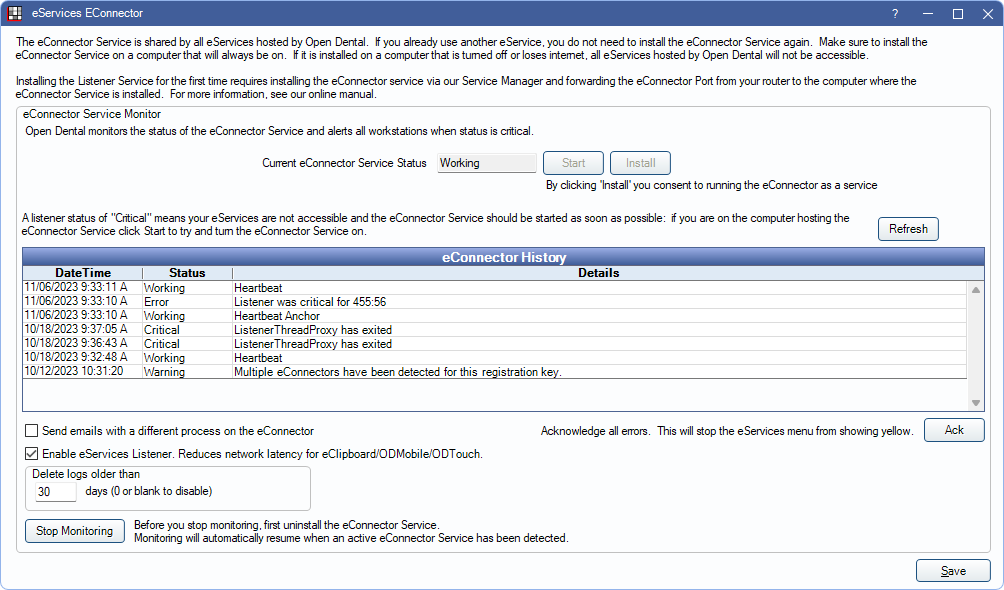
See the eConnector Help page for details on this window.
Install the eConnector
The eConnector can be automatically or manually installed.
Only install the eConnector on one machine (typically the server).
- The eConnector is not compatible with Linux or Mac. If using one of these on the server, the eConnector can installed on a workstation instead.
- If installing the eConnector to a computer other than the server, additional steps may be required after install. See Additional Steps for Installing on a Workstation for details.
In Preferences, set the eConnector machine as the Update Server.
The eConnector machine should always be on and awake. If turned off, hibernating, or in sleep mode, eServices will not work until the computer wakes up.
Automatic Installation
The eConnector is automatically installed if there has never been an eConnector heartbeat on the computer (i.e., no eConnector has ever been installed) and the database is updated to Version 22.3.48 or 22.4.20 or greater. When automatically installed, the Update Server in Preferences is set to the eConnector server.
Manual Installation
 See our video: eConnector Installation.
If the eConnector could not be automatically installed for any reason (e.g., permissions), it can be manually installed at another time. There are two methods to manually install the eConnector.
Option 1: Install from eServices Menu
- Update to the most recent stable version of Open Dental.
- Run Open Dental as an administrator.
- In the Main Menu, click eServices, eConnector Service.
- Click Install.
- If prompted to allow the eConnector to begin listening for requests, click Yes.
- If prompted to set the computer as the Update Server, click Yes.
- When installation is complete, click OK.
If an error displays indicating a need for manual installation, see Alternate / Manual Installation below.
Option 2: Install from Service Manager
If the eConnector could not be installed automatically or from the eServices menu, it can be installed from the Service Manager. To install the eConnector from the Service Manager, view the following interactive guide or scroll to read step-by-step instructions.
- Update to the most recent stable version of Open Dental.
- Open the Service Manager by running as administrator.
- In the Service Manager, click Add.
- In the Manage Service window, enter or choose the Service Name. It must begin with OpenDent (e.g., OpenDentalEConnector).
- Click Browse and select the OpenDentalEConnector.exe.
Typically, it is located in \Program Files (x86)\Open Dental\OpenDentalEConnector\. - Click Install.
- In the Settings window, enter the following configuration settings.
- Enter the configuration settings.
- Server: Name of server hosting the Open Dental database (typically localhost if installing on the Open Dental server).
- Database: Name of the database (typically opendental).
- User: Name of the MySQL user (typically root).
- Password: Enter the MySQL password.
- SkySQL PEM: If using a cloud-managed database system, enter the PEM filepath. File must be accessible from all workstations.
- Enter the configuration settings.
- Click OK to save configuration settings.
- In the Manage Service window, if this installation is successful, the status changes from Not installed to Installed, Stopped.
- Click Start to run the eConnector service. If the service is running successfully, the status changes to Installed, Running.
Additional Steps for Installing on a Workstation
Installing the eConnector on a workstation is only used when the server is not a viable option (e.g., running Linux or Mac). The eConnector can be installed using the aforementioned steps.
After installing, the following additional steps may be required, depending on the workstation's setup. This requires technical knowledge and may require an IT professional.
- Click Windows Start and open Services.
- Right-click the eConnector service and click Properties.
- In the Properties window, go to the Log On tab.
- Choose This Account.
- Enter the administrator login credentials.
- Click OK to save.