

Office Bridge
In the Main Menu, click Setup, Program Links. Double-click on Office.
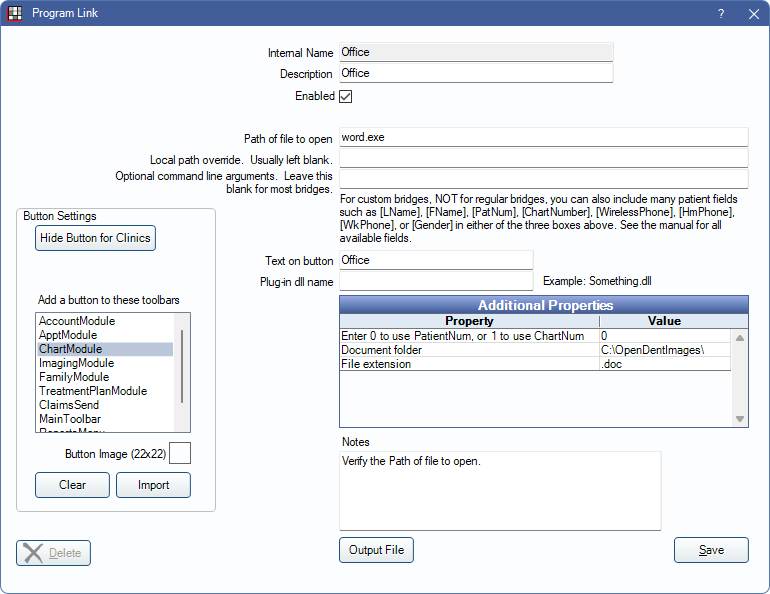
This bridge allows offices to attach a Microsoft Office or Open Office Writer document to a patient. This can be used to quickly store notes relevant to each patient without changing modules.
Bridge Setup
Enter the necessary settings to enable this bridge. Only the fields that need edits are listed:
- Enabled: Check to enable this bridge.
- Path of file to open: The location of the program executable. Defaults to word.exe.
- Additional Properties: Double-click a row to change settings.
- Enter 0 to use PatientNum, or 1 to use ChartNum: Determine which identifier is used to launch the patient in the bridge.
- Document folder: Location where the patient's documents reside. Defaults to C:\OpenDentImages\.
- File extension: Indicates the file format. Defaults to .doc.
- Text on button: (Optional) Enter the text that is displayed for the bridge button.
- Button Settings: Determine the visual behavior of the bridge button.
- Hide Button for Clinics: If using clinics, determine which clinics this button should and should not display for.
- Add a button to these toolbars: Determine which toolbars this button should display under. Defaults to ChartModule.
- Button Image: (Optional) Import an image to show on the button (must be exactly 22 x 22 pixels).
Click Save to keep changes.
Technical Details
Because Microsoft Office/Open Office files are patient specific, a patient must be selected.
Note: When saving a new document in OpenOffice and there is a prompt to "Keep Current Format or Save in ODF Format", it is recommended to Save in ODF Format.