

Keyboard Shortcuts
See Advanced Topics.
Open Dental has some keyboard shortcuts to help navigate the program.
General Shortcuts
These shortcuts are functional from various areas of the program, but may not be functional from all windows.
| Shortcut | Action |
|---|---|
| Shift + F1 | Open the Open Dental Manual search page (https://www.opendental.com/site/searchsite.html) |
| Alt + F | Open the File dropdown in the Main Menu. |
| Alt + S | For windows with a Save button, selects the button and closes the window. From a module opens the Setup menu. |
| Alt + L | Open the Lists dropdown in the Main Menu. |
| Alt + R | Open the Reports dropdown in the Main Menu. |
| Alt + T | Open the Tools dropdown in the Main Menu. |
| Alt + C | Open the Clinics dropdown in the Main Menu. |
| Alt + E | Open the eServices Setup window. |
| Alt + A | Open Alerts. |
| Alt + H | Open the Help dropdown in the Main Menu. |
| Alt + O |
|
| Ctrl + D | Inserts date into a text box. |
| Ctrl + P |
|
| Ctrl + Q | When in a note box, opens the Quick Paste Notes window. |
| Ctrl + X | Open the Referrals for Patient window. |
| Ctrl + Shift + C | Open the Contacts window. |
| Ctrl + Shift + F | Open the Procedure Codes window. |
| Ctrl + Shift + W | Open the Wiki. |
| Esc (or other keys that function as Esc) | Close the active Open Dental window, unless it is a module window (e.g., Account Module, Manage Module). Most changes are not saved. |
| F1:F12 |
|
Menu Shortcuts
| Shortcut | Action |
|---|---|
| Up / Down | When a menu is open, move up or down the list. |
| Left / Right | When a menu is open, move to the submenu if one exists. |
| Any Character | Jump to the next entry in the menu starting with that character. |
Alt Shortcuts
In any window, tap the Alt key on the keyboard to show any buttons that have Alt + [Character] shortcuts. Available character shortcuts are underlined.
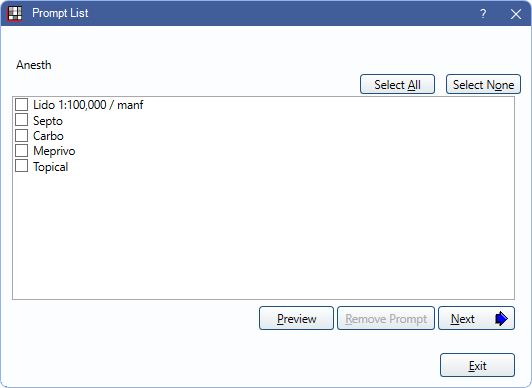
For example for the Prompt List window shown above, the following shortcuts are valid:
- Alt + A: Select All
- Alt + O: Select None
- Alt + P: Preview Auto Note
- Alt + R: Remove Auto Note prompt
- Alt + N: Next prompt
- Alt + E: Exit Prompt List
Additional Information
Shortcuts may not be functional when a text box or dropdown menu is selected in a window.
In some windows, shortcuts may be functional without using the Alt key (e.g., clicking S instead of Alt + S).