
Canada Lab Fees
For Canada users, in the Procedure Codes list, double-click a procedure code.
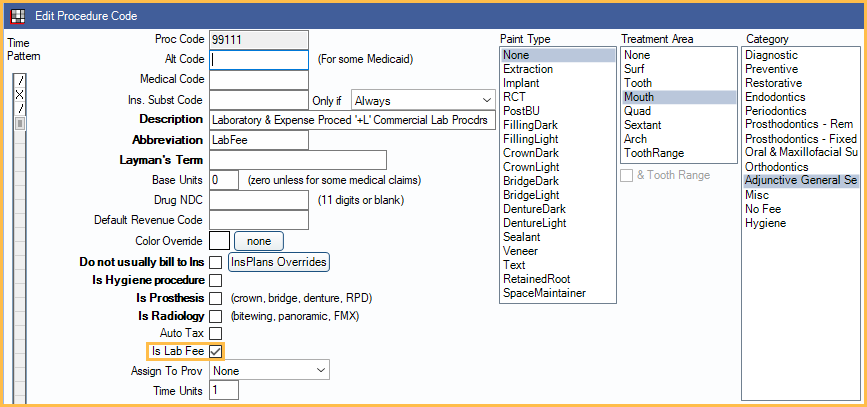
Lab fees can be charted in Open Dental and associated with a procedure code.
To ensure a procedure code is considered a lab, check Is Lab Fee in the Edit Procedure Code window.
Attaching Lab Fees to Procedures
Labs must be attached to a procedure prior to sending a claim. Each procedure may have up to two lab procedures attached.
When a lab is attached to a procedure code, a visual indicator of ^^ appears in the description.

The lab fee can be updated from the lab procedure. Double-click the lab procedure code to open Procedure Info and edit the Amount as needed.
The following are the two different ways to associate a lab with a procedure.
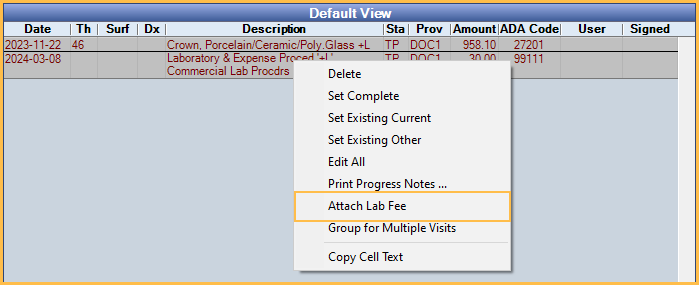
Add the lab fee directly to the procedure code:
- Double-click on the procedure code.
- Click the Canada tab.
- Type in the lab amount. Add up to two lab fees. This automatically creates the 99111 procedure code.
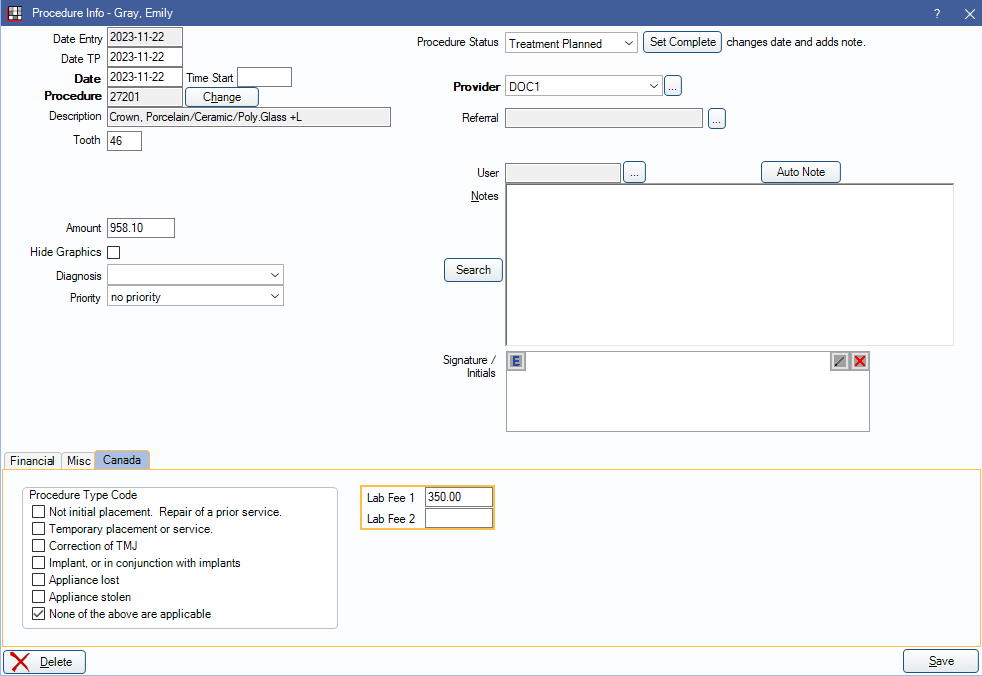
Manually attach a lab fee:
- Chart the procedure and the lab procedure code separately.
- Once both are charted, in the Chart Module, highlight both the procedure and lab, right-click on either code.
- Select Attach Lab Fee. This attaches the lab fee with the procedure. Use this method if using a custom lab procedure code.
Providers
By default, the provider associated with the lab procedure matches the provider on the attached dental procedure. A default provider override can be set for lab codes in the Procedure Code List.
To change the provider on a lab, double-click into the lab procedure and use the Provider dropdown. When the provider on the lab procedure differs from the dental procedure, a warning appears when sending claims. The warning message is informational only and does not stop the claim from sending.
Removing Lab Fees
To remove a lab fee, delete the lab procedure or clear out the lab fee from the procedure it is attached to. Labs can only be removed from a procedure that has not been added to a predetermination or claim.
Lab fees can also be detached from procedures by right-clicking the lab procedure in the Chart Module and selecting Detach Lab Fee.
Change Lab Procedure Code
The default lab code is 99111, however other codes (e.g., Expense Fee code 99121) can be used.
To chart a different lab code:
- In the Procedure Info window, click Change.
- Chart the alternate code separately then use right-click options to attach it to the procedure.
Appointments
Lab procedures show on a separate line in the Appointments Module. The lab amount calculates into production.

Insurance Estimates
Lab fee estimates are based on the coverage of the associated procedure. Overrides to estimates must happen on the procedure rather than the lab. To use the same insurance estimate logic for PPO plans, enable the Canadian PPO insurance plans create lab estimates preference.
Claims
Lab procedures must be attached to the related procedure before submitting on a claim. If the lab procedure is a custom procedure code, printed and electronic claims show only the first 5 characters, but EOB printouts show the custom code as it shows in Open Dental.
Lab procedures show in the Edit Claim window. The lab fee shows as a separate line item.
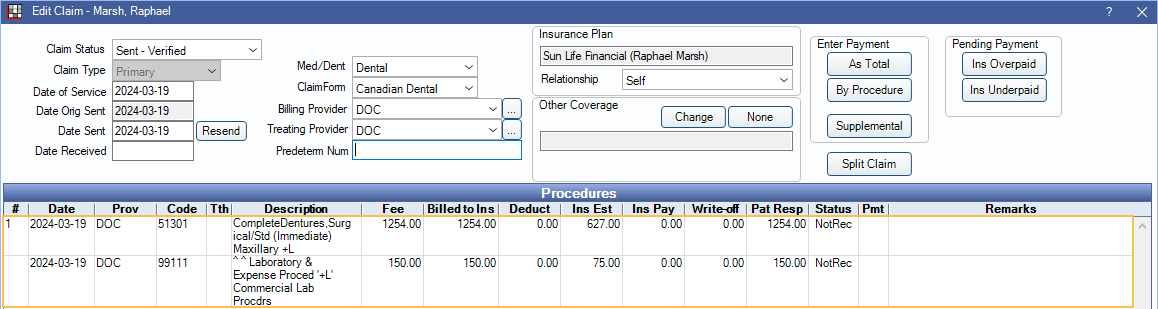
On a printed claim, the sum of attached lab and expense fees show under the Laboratory Charge column on the same line item as the procedure.

Receiving Claims
When receiving a claim with a lab procedure, there is the option to quickly distribute payment to the lab fee. This is useful when insurance sends back the full payment amount allocated to the procedure, rather than the procedure and lab.
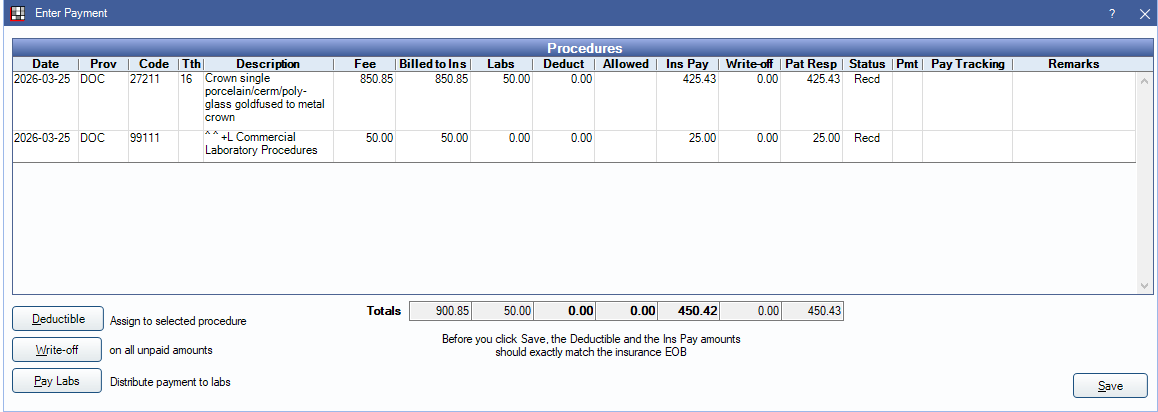
When entering the claim Payment, click Pay Labs. Lab amounts will be immediately entered on the lab fee procedures.