

Global Payments V2 Setup
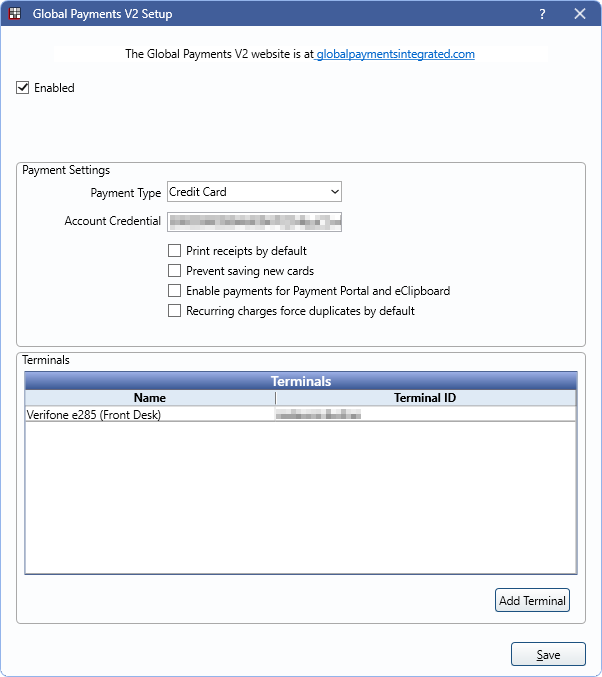
Enable the Global Payments V2 program link to process payments in Open Dental using Global Payments.
In the Main Menu, click Setup, Program Links. Double-click on Global Payments V2 from www.globalpaymentsintegrated.com.
See Global Payments V2 Transaction for information on processing payments.
Getting Started
- Before completing setup in Open Dental, contact Global Payments to sign up.
- Global Payments provides numerous setup options, including Global Payments V1 and XCharge (not normally used for new users).
- Only one version of a Global Payments Program Link (i.e., Global Payments V1, Global Payments V2, or XCharge) can be enabled at a time.
- Global Payment V2 is only available for some Open Dental Cloud users. Contact Open Dental Support if you are interested in this integration.
- See Global Payments Integration or contact Global Payments for additional information.
Setup
Enabled: Check to enable Global Payments V2. This applies to all clinics.
Clinic: If using Clinics, select the clinic the Payment Settings apply to.
Payment Settings
Enter settings to determine transaction behavior and account credentials.
Payment Type: Select the default Payment Type for Global Payments V2 transactions.
- If the Payments prompt for Payment Type is enabled in Preferences, users must manually select a payment type when creating a payment.
Account Credential: Enter the account information provided by Global Payments.
Print receipts by default: Check to automatically print a Global Payments receipt to the default receipt printer when a transaction is completed.
Prevent saving new cards: Uncheck to allow users to process new transactions or save new payment information to a patient's account in Open Dental. Check to prevent users from processing new transactions or saving new payment information in Open Dental. This does not affect payments processed through the Payment Portal Feature.
- To set whether or not new cards are saved to a patient's account after each transaction, see the preference, Automatically store credit card tokens.
Enable payments for Payment Portal and eClipboard: Check to enable the processor for Payment Portal.
Recurring charges force duplicates by default: By default, transactions for the same amount charged to the same card on the same day are declined. This is to prevent accidentally charging a card twice. Check to allow duplicate charges. Useful if family members have recurring charges set up on the same card for the same day.
Click Save to keep changes and exit setup.
Terminals
Set up credit card terminals to process payments with Global Payments V2.
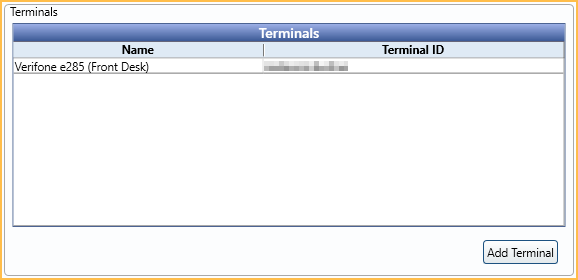
Contact Global Payments for information on compatible terminals.
Click Add Terminal to set up a new terminal or double-click an existing terminal to edit details.
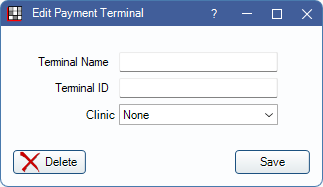
- Terminal Name: Enter a description for the credit card terminal.
- Terminal ID: Enter the serial number associated with the credit card terminal device.
- Delete: Remove an existing terminal. The terminal will no longer be available to use when processing payments in Open Dental.
Click Save to keep changes.