

Security
In the Main Menu, click Setup, Security.
Setting up security for the Open Dental program will help protect patient data and track user access. This is an important component of a security plan as well as a requirement for HIPAA compliance.
- Only users with the Security Admin security permission can access the Security area.
- Every person who uses Open Dental should have a unique user name and password for logging on.
- Other options, such as automatic log-off and lock dates, can also be set.
 See our video: Security and User Permissions Webinar.
Also see: Permissions.
Tracking authorized use of Open Dental: Every time a user logs in, logs off or closes Open Dental, an entry is created in the Audit Trail. Another option is to use the Windows audit feature. Set up Windows so that each user is required to log in separately, then use the Security Log to view valid and invalid log attempts. To view the Windows audit log go to This PC, right-click and choose Manage, expand Event Viewer, expand Windows Logs, and click Security.
Toolbar Options
Global Security Settings: Click to open Global Security Settings.
CEMT Users: Only shows when CEMT users are enabled for the database. Opens the Central User Edit window.
Double-click a user, or highlight a user then click Edit, to open the User Edit window. When accessed, CEMT Users can have an employee, provider, or DoseSpot ID associated. 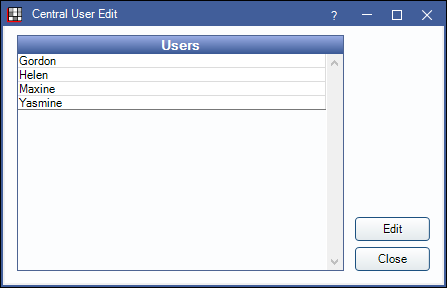
Users
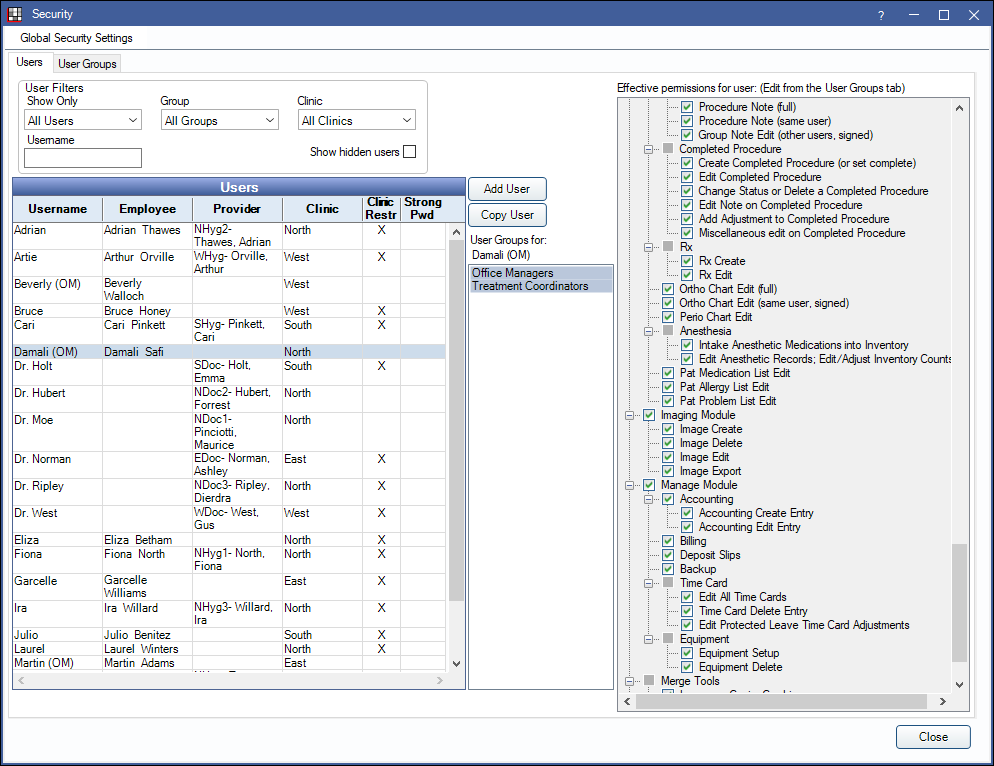
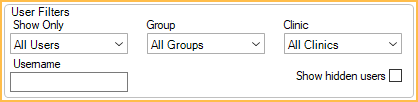
User Filters: Adjust filters to show only users matching the criteria in the Users list below.
- Show Only: Select an option from the dropdown to only show certain users.
- All Users: Select to show all users regardless of employee/provider association.
- Providers: Select to only show users associated to a provider.
- Employees: Select to only show users associated to an employee.
- Other: Select to only show users with no employee or provider association.
- Group: Select the user group to filter by. Only users associated with the selected group with be listed. Select All Groups to include users regardless of user group.
- Clinic: Select the clinic to filter by. Filters by user's default clinic. Select All Clinics to include users regardless of default clinic.
- Username: Type a username to search for a specific user.
- Show hidden users: Check to include users marked hidden in the Users list.
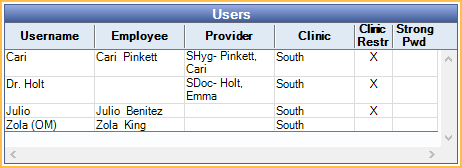
Users: A list of all users that meet the User Filter criteria. Double-click to Edit a User. Below is additional information on the Users grid:
- Username: Name the user will use to log into Open Dental.
- Employee: First and last name of employee associated with the user. Used for the Time Clock.
- Provider: Provider associated with the user.
- Clinic: User's default clinic.
- Clinic Restr: X indicates the user is restricted to specific clinics.
- Strong Pwd: X indicates the user has a strong password.
Add User: Click to create a new user.
Copy User: Highlight a user, then click to make a copy. Information copied includes user group, permissions, clinic restrictions, and alert subscriptions. This is useful when adding a new user with similar permissions and setup to an existing user. When copied, you will be prompted to create a password. Create a password or click OK to skip. Once created, edit the copied user as needed.
User Groups for: Displays users groups associated with the selected user.
Effective permissions for user: A read-only list of the user group's assigned permissions (Checked = allowed, Unchecked = not allowed). To change a user group's assigned permissions, click the User Groups tab.