


Operatories
Add and customize operatory options to meet the needs of the practice.
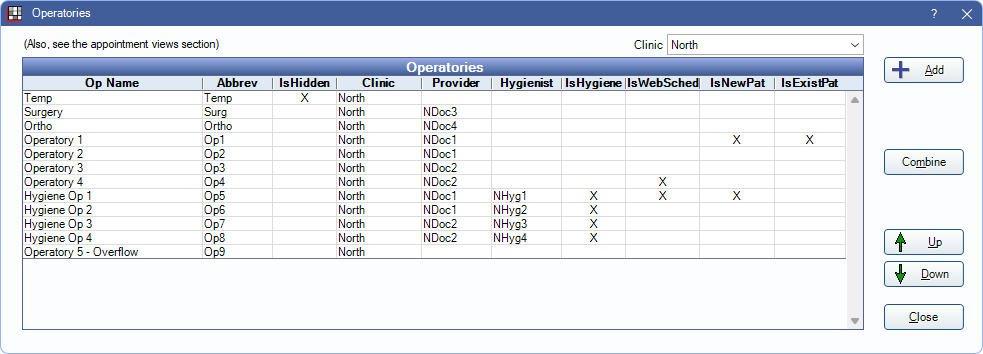
In the Main Menu, click Setup, Appointments, Operatories.
 See our videos: Operatory and Schedule Setup & Operatory and Schedule Setup for Clinics
- Clinic: Click to filter operatories by clinic.
- Add: Click to create a new operatory. Opens Operatory Edit.
- Combine: Select multiple operatories, then click to combine them. See Combine Operatories below for additional details.
- Up / Down: Highlight an operatory and click to rearrange the operatory in the list. Operatory sort order affects the left-to-right order of operatories in Appointment Views. If a specific clinic is selected, the operatory being moved cannot belong to a Headquarters Appointment View.
Double-click an existing operatory to open Operatory Edit to view additional details or make changes.
Combine Operatories
Duplicate operatories can be combined. Combining affects all appointments in the selected operatories.
- Select two or more operatories to combine.
- Click Combine.
- A confirmation message is shown. Click OK to proceed.
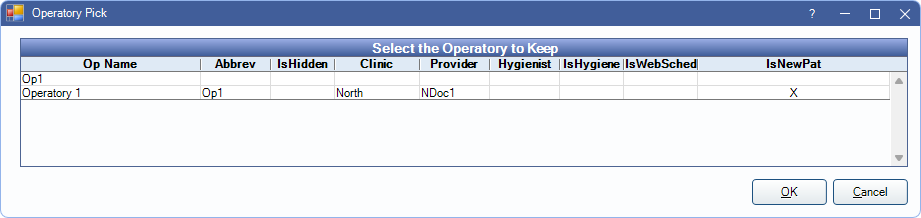
- The Operatory Pick window opens. Highlight the operatory to keep, then click OK.
- There may be additional action needed if there are appointments scheduled in both operatories.
- If appointments do not overlap, users are prompted to move the appointments into the merged operatory. Click OK to automatically move the appointments.
- If appointments do overlap, and Appointments allow overlap, is not enabled in Preferences, they will need to be manually moved before the operatories can be combined. A warning message is shown. Click OK to view a list of conflicting appointments. This list can be printed. When all conflicts are resolved, reopen the Operatories window to combine.
Duplicate operatories are marked hidden and appointments merged.
Prompts to Change Provider
When an appointment is moved from the Pinboard to an operatory, or from one operatory to another, users may be prompted to change the provider. If operatories are assigned to default providers, or to provider time blocks in the schedule, this is often what they want to do.
To turn the prompt off:
- Do not assign providers to operatories (Provider or Hygienist).
- Do not assign provider time blocks to operatories in the schedule.
Provider Logic
A provider is automatically assigned to an appointment using the logic in the following order:
- The provider scheduled in the operatory. See Schedule Setup.
- The provider assigned to the operatory. See above.
- The patient's primary provider. See Edit Patient Information.