|
||||||||||||
|
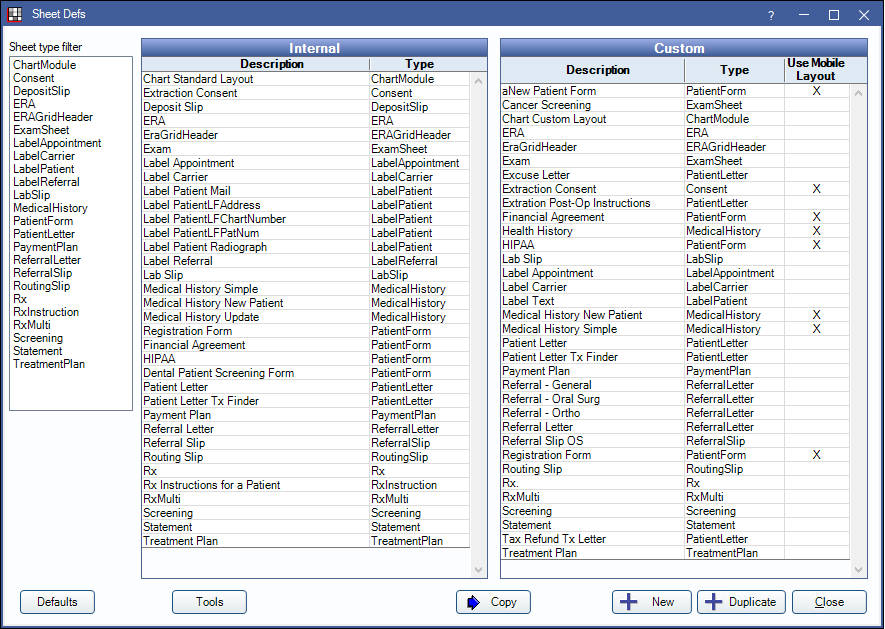
Sheets From the Main Menu, select Setup | Sheets. This framework is very general and powerful. It allows customization and archival of printouts. It includes use of images, static text, output text, input fields, freehand drawing, lines, rectangles, checkboxes, radio buttons, and signature boxes. The drawing with a stylus or mouse can be used to check boxes on a form, circle teeth, sign, etc. The sheets framework is currently being used for Labels, Referral Slips, Prescriptions, Consent Forms, Letters, Routing Slips, Patient Forms, Medical Histories, Lab Cases, Exams, and Deposit Slips. This page describes how to setup sheets (SheetDefs). To actually create a sheet for a patient based on one of the SheetDefs, see one of the sections above.
There is already an internal sheet of each type. You can double click to view, but cannot edit. To edit, you must create your own sheet by using one of the three buttons at the bottom. You can also export/import sheets as XML to move them between databases.
Click the Edit Properties button at the upper right.
The description that is used will be copied to the description of each sheet that is created for a patient. Fields Each sheet has multiple fields on it. There are different types of fields available. Output Text: These fields are generated later from the database. Depending on the sheet type, the user might have the option of editing the text after it's generated. Static Text: The text will be exactly what you type in during setup. The user might still be able to edit it. Can also be used with in-line fields described further down. So there is some overlap in functionality with Output Text fields. This type of field is used for large paragraphs. Input Field: Used in Patient Forms to allow user to fill out a form and have the data get imported into the database. Image: Can be used for an entire background based on a scanned form. Can also be used to place any smaller desired graphics on the sheet. If you place a small image on your sheet, be sure to see the drawing section further down. A small image on a sheet will make lines and rectangles not show unless you also add a larger background image. Line, Rectangle: Fixed objects used for the background. Not needed if the background is a scanned image. Checkbox: Allows the user filling out the sheet to click on a defined area to toggle an X on and off. There is no rectangle around the checkbox, making it useful with scanned backgrounds. If there is no scanned background, then you should add a rectangle behind the checkbox to be used as a visual indicator for the user. Suggested size for the checkbox is 11x11 and for a surrounding rectangle, 12x12. Radiobuttons: These are a special kind of Checkbox which allow multiple choice selection. When the user is filling out a form, and they click on one radiobutton, the others in the group will automatically uncheck. There are two kinds of radio buttons: 1. Imported radiobuttons: These are only used in Patient Forms. For example:
This kind of radiobutton is designed to allow import. After the user fills out the form, the group of radiobuttons with the same Field Name will have a value that can be imported to the database. 2. Misc radiobuttons: Users can define their own radiobutton groups for forms. The values cannot be imported, but the radiobutton behavior can be achieved on the form. Add a checkbox and set the Field Name to "misc". Then, just set the Group Name to be the same for each radiobutton in a group.
Drawing: Freehand drawing on the sheet with a stylus or mouse. This is not a field type that's added during setup. The user filling out the form can arbitrarily draw anywhere on the sheet. When drawing freehand on sheets, there is one quirk to be aware of. Because of limitations in Windows, the drawings (as well as any lines and rectangles) are presented to the user as a layer on top of an image. If you put an image on your sheet, it must be large enough to write on, probably covering the entire background. If you have no image at all, then we automatically put a white dummy image on the screen that you won't see, and that is what is drawn upon. So this limitation will be a problem if you put a small image on your sheet. It might inadvertently disable drawing on the rest of the sheet. You can solve it by making your image larger, or by adding a second larger image that covers the area that needs to be enabled for drawing. Signature Box: Digital Signatures can be signed directly on the screen or can be signed using an external signature pad. The signature will be electronically tied to all the other data on the sheet. If any data is later changed, then the signature will disappear and will instead display as invalid. Multiple signature boxes can go on a single sheet. Only certain types of sheets, those that display before printing, can make use of a signature box. For now, Rx is one type of sheet that cannot accept a signature box because it always directly prints without preview. Editing Within some of the field edit windows is a setting for growth behavior. Down Local is usually used for the address because it is not known ahead of time if the address will be one line or two. So if it grows to two lines, then it will bump down any other fields that are immediately below it, such as CityStateZip. DownGlobal would push down all the fields on the entire sheet which are below the one that's growing. This is useful for table style data and for letter bodies. Setting the growth behavior will never cause a field to shrink, but only to grow bigger. Do not overlap fields. Some exceptions are that any field may be placed on top of a background image, and that a checkbox can be placed on top of a rectangle. But otherwise, overlapping will cause annoying problems. There is no way to set which fields draw first, so if you try to put a checkbox on top of a paragraph of text, for example, then the checkbox could easily be hidden under the white background of the text box. Static Text Fields (In-line)
These extra fields are only available in static text fields. If there are more fields that you would like to have added then please submit them as a Feature Request. Such fields are usually added with the next version release. Filling out Sheets This is also when freehand drawing may be done. If the user makes a mistake while drawing, they can use the eraser tool, the checkbox at the right. Once the box is checked, the pointer changes to an eraser and clicking and dragging will erase drawings. A drawing is defined as a continuous curved line without lifting the pen. So the eraser will erase continuous lines as single objects. Uncheck the box to turn the eraser off. When printing from the fill sheet window, the Print/Email button lets you perform both actions simultaneously. For email, the sheets gets converted to a PDF and attached to the outgoing email. The sheet is also archived in the database for later reference whether it's printed or emailed. Sheets can be viewed at the bottom of the Account module, or in the Chart module. Once a sheet is filled out, it is locked. It can be unlocked using the checkbox at the right, but only if the user has that Security permission.
|
||||||||||||
Open Dental Software 1-503-363-5432
|