


Insurance Plan
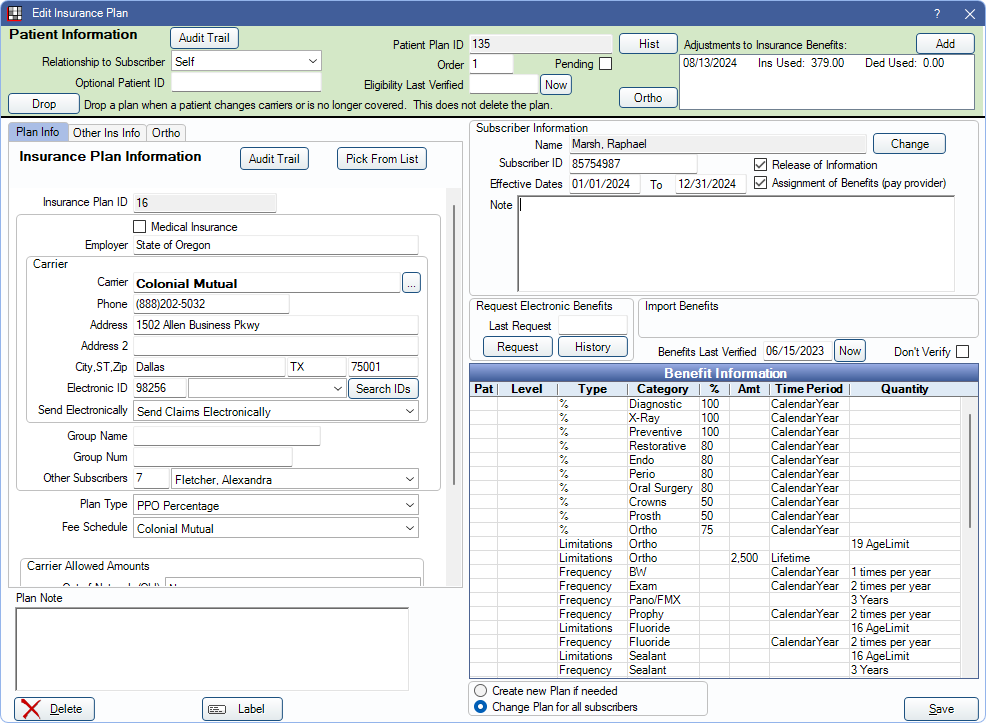
Add new or edit existing insurance plans from the Edit Insurance Plan window.
In the Family Module, double-click an existing insurance plan.
Alternatively:
- Double-click a plan in the Insurance Plans list.
- Add Insurance to a patient.
Patient Information
This information is specific to the patient.
- In the database, it is stored in a table called patplan.
- Set the background color in Definitions: Misc Colors, Family Module Coverage.
- If editing a plan which is not attached to any patient as current coverage, this upper section may be blank.

Audit Trail: Click to view the Insurance Patient Plan Edit log. This audit trail displays patient-level changes to the insurance plan and is accessible to all users.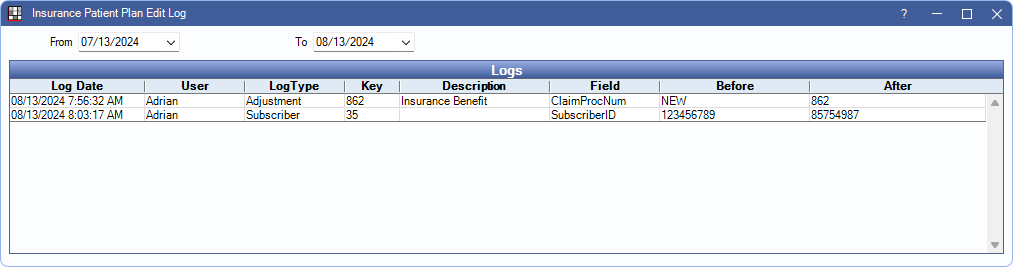
For changes made to the insurance carrier, insurance plan, benefits, or employer, see the Audit Trail in the Plan Info tab.
Relationship to subscriber: (required) If the patient is the subscriber, the default is Self. Otherwise a relationship must be selected.
Optional Patient ID: ID used instead of a Subscriber ID. Used automatically on paper claims if added. To send the patient ID on e-claims, enable On e-claims use Optional Patient ID instead of Subscriber ID in Preferences. If no Optional Patient ID is added, Subscriber ID is used.
Drop: Drop Insurance Plan from the patient when the patient no longer has insurance coverage or changes carrier. The insurance plan is not deleted and the plan remains in the Insurance Plans for Family window.
Patient Plan ID: A system generated unique identifier that is useful for third-party reporting.
Order: Determines the order this plan shows in the Family Module (primary, secondary, or supplemental insurance). 1 = primary, 2 = secondary, etc. The number can be changed at any time.
Eligibility Last Verified: The date that patient insurance eligibility was marked verified (manually or using the Insurance Verification List). Click Now to insert today's date.
Pending: Informational only. Identifies insurance information that is incomplete or unverified. If the the insurance company name is unknown, create a dummy carrier called Pending, check the Pending box, then come back later and fix it.
Hist: View history for procedures completed outside of the office. This is useful when tracking insurance frequencies. See Insurance History.
Ortho: View patient-specific information about the next time an orthodontic claim will be automatically generated when using Ortho Auto Claims.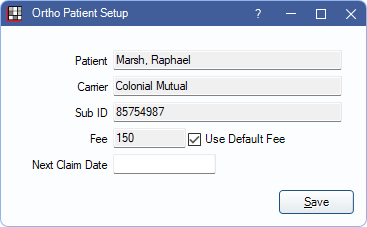
- Fee: Defaults to the fee set in the Ortho Tab. Uncheck Use Default Fee to enter a patient fee override.
- Next Claim Date: The date the next claim will be created using the Tool. Defaults to a date based on the last auto-created claim and the frequency (i.e., Auto Proc Period).
Adjustments to Insurance Benefits: Displays any entered Adjustments to Insurance Benefits for the benefit year. Click Add to enter additional adjustments.
Plan Info Tab (Insurance Plan Information)
This information is specific to the insurance plan and can only be edited by users with the Insurance Plan Edit Permission. Carrier information can only be edited by users with both the Carrier Edit and Insurance Plan Edit permissions.
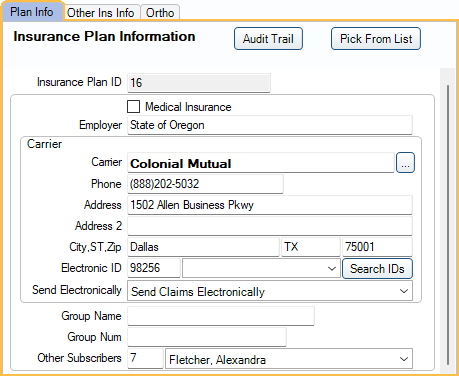
Audit Trail: View changes made to the insurance carrier, insurance plan, benefits, or employer. This audit trail is accessible to all users.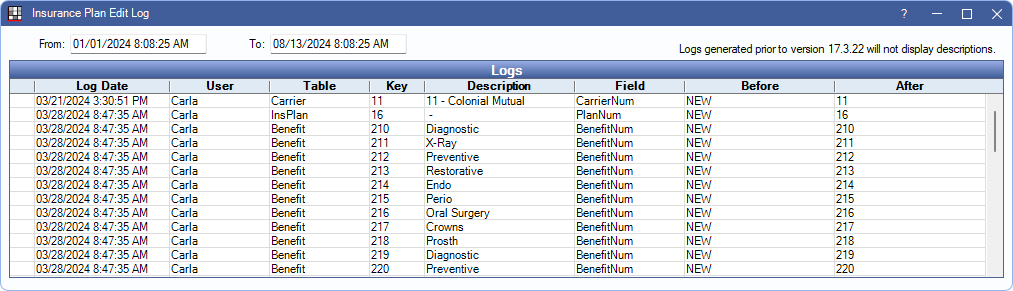
Pick From List: Select an existing insurance plan from the Insurance Plans list. Requires the Change existing Ins Plan using Pick List permission. Alternately, drop the insurance plan before picking a new plan.
Insurance Plan ID: A system generated unique identifier that is useful for third party reporting and to filter the Insurance Plan List.
Medical Insurance: Check this box if this is Medical Insurance rather than dental. Only visible if Medical Insurance is turned on.
Employer: Optional. The Employer associated with the insurance plan. Begin typing and select an existing entry from the Employers List. If an entry is not selected, a new entry is added to the Employers List.
Carrier: Required. Click [...] to pick an existing carrier from the Carriers list or begin typing to select an existing carrier from the dropdown. If a user manually enters carrier information or changes carrier information, a new entry is automatically added to the Insurance Carriers List.
- Carrier information is grayed out if the logged-on user does not have sufficient permissions.
- Carrier information can only be edited from by users with both the Carrier Edit and Insurance Plan Edit permissions.
- If the logged-on user changes information in any carrier field, a new carrier is created. If a different user has a plan open with the same carrier, and carrier information is edited by that user, a new carrier is also created.
Electronic ID/Payer ID: Provided by the insurance company if they accept E-Claims. Enter the ID manually or click Search ID to search the Payer ID list. If the carrier does not accept electronic claims, there are two choices.
- Leave the ID blank and submit the claims electronically anyway. If the clearinghouse cannot match the insurance carrier name with a known name, the claim will be printed by the clearinghouse and mailed.
- Select a don't send electronically option for Send Electronically (see below). These claims will be marked as paper.
Send Electronically: Determines whether e-claims can be sent electronically for this insurance plan. Defaults to the setting for the carrier (see Carriers) but can be changed by insurance plan..
- Send Claims Electronically: Allow sending e-claims for this plan.
- Don't Send Claims Electronically: Do not allow sending e-claims for this plan (e.g., claims must be printed).
- Don't Send Secondary Claims Electronically: Do not allow sending secondary e-claims (e.g., when plan requires that secondary claims are mailed with a copy of the primary EOB).
Group Name: Typically the same as the employer. Used to identify differences in plans (i.e., if the same employer has multiple plan options.)
BIN: Benefit Identification Number. Issued by the carrier. Only displays when EHR is enabled in Show Features.
Group Number: Issued by the carrier.
Other Subscribers: Indicates the number of subscribers who use or have used this plan. Click the down arrow to see other subscriber names.
Plan Info Tab (continued)
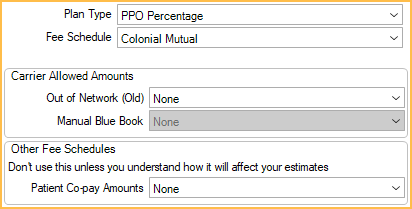
Plan Type: Choose the Insurance Plan Types from the dropdown. Affects availability of other options.
- Category Percentage: Traditional percentage insurance plans.
- PPO Percentage: Preferred Provider Organizations. Set this as the default for new plans in Preferences.
- PPO Fixed Benefit: In-network plan that calculates write-offs and covers insurance at a fixed amount.
- Medicaid or Flat Co-pay: All categories are computed at 100% coverage. Disables all other percentages.
- Capitation: HMO and DMO type plans. Disables all other percentages.
For help choosing the correct plan type and setup, see: Insurance Flow Chart or Capitation Flow Chart.
Fee Schedule: The fee schedule used by this plan. If none, the provider's fee schedule is typically used. The only exception is if a fee schedule has been set on the Edit Patient Information window (e.g., a discount/cash fee schedule); this overrides other fee schedules.
Use Blue Book: Only displays when Plan Type is set to Category Percentage. When checked, the plan uses Insurance Blue Book to determine estimates. When unchecked, the plan does not use Blue Book for estimates. A confirmation message displays when unchecking this box.
Carrier Allowed Amounts: Set the fee schedule for out-of-network plans. Only one may be set at a time.
- Out of Network (Old): Used for out-of-network insurance plans.
- Manual Blue Book: Used when Blue Book is enabled.
Other Fee Schedules: See Types of Insurance Plans for more information.
- Patient Co-pay Amounts: Used for patient co-pays per procedure.
- Fixed Benefit Amounts: Only visible when plan type is set to PPO Fixed Benefit. The fixed benefit fee schedule for the plan.
Other Ins Info Tab
Use Alternate Code: Use alternate procedure codes when submitting claims (e.g., Medicaid). To associate alternate codes (Alt Code) with procedure codes, see Edit Procedure Code. Only available when Medicaid is enabled in Show Features.
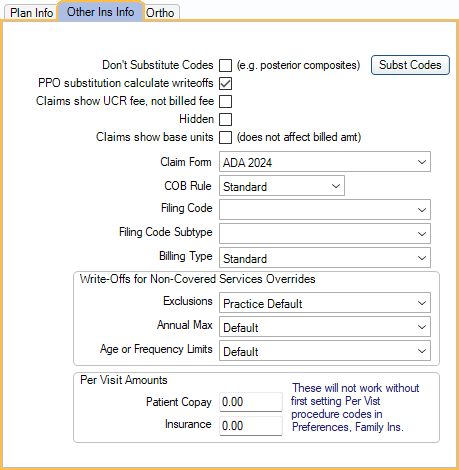
Substitution code options: These options determine whether or not estimated fees for procedures are downgraded based on substitution codes. Associate substitution codes to procedures in the Procedure Code List. Also see Estimate Downgrades.
- Don't Substitute Codes (e.g., posterior composites):
- Checked: Do not use substitution codes to calculate downgraded insurance estimates. All estimates are be based on the fee of the completed procedure and substitution codes are ignored.
- Unchecked: Use the substitution code associated with the procedure (if entered) to calculate downgraded insurance estimates. This affects all procedures with substitution codes, unless there are specific substitution codes marked to exclude.
- PPO substitution calculate writeoffs: Select whether insurance estimates calculate write-offs when a procedure is substituted. Only applies to PPO plans.
- Checked: Calculate write-offs when a procedure code is substituted. The write-off is calculated between the amount billed to the patient (i.e., office fee) and the allowed fee for the originally charted procedure.
- Unchecked: Do not calculate write-offs when a procedure is substituted.
- Subst Codes: Control which procedure codes have downgraded estimates for this insurance plan (also uncheck Don't Substitute Codes).
Claims show UCR fee, not billed fee: Show the UCR fees of the treating provider on claims instead of the insurance fee. The default value for new plans is determined by the Insurance plans default to show UCR fee on claims preference. When enabling the preference, there is a prompt to change all existing plans to show UCR fee.
Hidden: Hide this insurance plan in the Insurance Plans List so it can't be copied for use by other subscribers. If this plan has multiple subscribers, and it should be hidden it for all subscribers, also select the Change Plan for all subscribers radio button.
Claims show base units: Check this box to show base units on claims. Usually applies to medical insurance claims only. Base units are entered on the Edit Procedure Code window.
Claim Form: The form used for printed claims. Set the default in Claim Forms.
COB Rule: Select a Coordination of Benefits ( COB ) rule option.
Filing Code: For e-claims. If the carrier has an Insurance Filing Code, select it. By default, Commercial Insurance is used. If the filing code is incorrect, then the carrier will reject the claim.
Filing Code Subtype: If the insurance filing code has a specific subtype, select it.
Billing Type: The plan's Billing Type. If the preference for Adding new primary insurance plan to patient sets billing type is checked, and this is a new primary insurance plan, setting a Billing Type here also assigns the Billing Type to the patient in Edit Patient Information. (If an existing plan's Billing Type is changed, it does not automatically change the patient's Billing Type).
Write-Offs for Non-Covered Services Override: Choose the behavior for this insurance plan when handling write-offs for procedures that are not covered by insurance.
- Exclusions: For in-network plans. If a procedure is excluded from insurance coverage, determines if patients are billed the full UCR fee. Exclusions are defined using Other Benefits, or by setting coverage to 0%.
- Practice Default: Behavior is determined by the Ins plans with exclusions use UCR fee (zero out write-offs).
- Do Nothing: Exclusions are billed normally based on plan fee schedule.
- For plans set up with a PPO Plan Type, write-offs are calculated normally.
- For plans set up with a Category Percentage Plan Type, the patient is billed the fee from the assigned Fee Schedule.
- Use UCR Fee: Write-offs are automatically zeroed out if an exclusion exists for a procedure code.
- For plans set up with a PPO Plan Type, write-offs are zeroed out.
- For plans set up with a Category Percentage Plan Type, the full UCR fee is billed.
- Annual Max: If patient is has met their annual max, determines if this insurance plan automatically zeroes out write-offs.
- Default: Behavior is determined by the preference Ins plans use UCR fee (zero out write-offs) when annual max is met.
- Yes: Write-offs are automatically zeroed out if the patient has met their annual max.
- No: Write-offs are not changed if the patient has met their annual max.
- Age or Frequency Limit: If patient has met an age or frequency limit, determines if the insurance plan automatically zeroes out write-offs.
- Default: Behavior is determined by the preference Ins plans use UCR fee (zero out write-offs) when frequency or age limits are met.
- Yes: Write-offs are automatically zeroed out if a procedure is not covered due to a frequency or age limit.
- No: Write-offs are not changed due to frequency or age limit.
Per Visit Amounts: For primary insurance plans with per-visit copays, enter the amounts the patient and insurance pay.
- Patient Copay: Flat amount the patient pays for an office visit. The Patient copay procedure code, set in Preferences, is automatically added to new appointments for the specified amount.
- Insurance: Flat amount insurance pays per office visit. The Insurance procedure code, set in Preferences, is automatically added to new appointments for the specified amount.
Ortho Tab
The Ortho tab shows when the preference, Show Auto Ortho in Account Module, is enabled. Use it to enter plan information for orthodontic claims. This information is also in the Auto Ortho tab. Information can only be changed by users with the Insurance Plan Ortho Edit security permission.
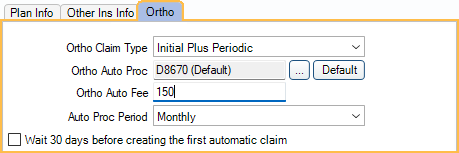
Ortho Claim Type: Select how the carrier wants to receive orthodontic claims.
- Initial Claim Only: Send a single orthodontic claim for the initial procedure.
- Initial Plus Visit: Send an orthodontic claim for the initial procedure and each subsequent visit.
- Initial Plus Periodic: Send an orthodontic claim for the initial procedure, then send claims periodically for a certain fee and procedure. Selecting this option makes claims for this carrier eligible for automatic claim generation using the Auto Ortho Tool.
If Initial Plus Periodic is the claim type, the following fields are also editable.
- Ortho Auto Proc: The procedure code to put on auto-generated orthodontic claims. Set the default in Preferences. Click [...] to select a different procedure. Click Default to reset the default. Only the first 5 digits of procedure codes are sent to insurance.
- Ortho Auto Fee: The procedure fee billed in the claim.
- Auto Proc Period: Select the frequency of which the claim will be auto-generated.
- Wait 30 days before creating the first automatic claim: If the insurance carrier requires that there is a minimum amount of days after the initial visit before periodic claims can be sent, check this box. When checked, the next claim will show in the Auto Ortho Claim list 30 days after the initial procedure is completed.
Subscriber Information
The subscriber is set when first creating the insurance plan.
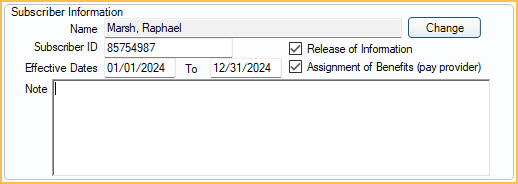
Name: Displays the subscriber name. Click Change to choose a different subscriber.
Subscriber ID: Required and cannot be blank. If the patient has Medicaid, use the Medicaid ID number, then also fill in the Medicaid ID on the Edit Patient Information window.
Effective Dates: The effective dates of the insurance plan. The effective start date is required when using waiting periods. The end date does not terminate the plan. Plans that are no longer in use should be dropped. If using Automation, the effective end date is used for the Condition, Insurance Not Effective. Set benefit renewal dates (calendar year or service year) in the Benefit Information section (see below). Affects filters in the Procedures Not Billed to Insurance Report.
Release of Information: Check this box if the patient has signed a form that states that the patient consents to the use and disclosure of protected health information to the insurance company in order to carry out payment activities. Signature on File shows in box 36 of the printed ADA Claim Form.
Assignment of Benefits: Determines whether insurance payments are paid directly to the patient or provider.
- Checked: Insurance payments are sent directly to provider.
- Unchecked: Insurance pays patient. Typically used in offices where patient pays upfront. See Claims with No Payment on the Receive Claim page for claim information.
- Enable the preference, Auto receive claims with no assignment of benefits, to automatically mark claims received with $0 payment once they have been marked sent.
- The permission, Insurance Plan Change Assignment of Benefits is required to change this setting.
- Changes made to Assignment of Benefits are logged in the Audit Trail.
- The default for new plans is determined by the Insurance plans default to assignment of benefits preference. When enabling or disabling this preference users are also prompted to change existing plans.
- If using Clinics, this setting can be overridden by the Clinic setting, Always Assign Benefits to the Patient. When the Clinic setting is checked, Assignment of Benefits is always enabled, regardless of whether checked or unchecked in this window.
Note: Notes specific to the subscriber and associated family members. These appear in bold red in the insurance grid. Right-Click the text box for additional options.
Benefit Information
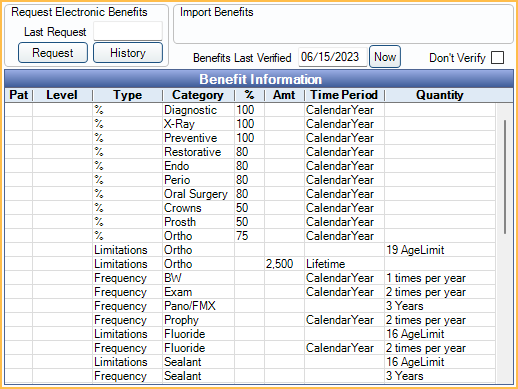
Request Electronic Benefits: If the practice has signed up for Electronic Eligibility and Benefits with a clearinghouse, and a Subscriber ID is entered, click Request to request benefit information or History to view a history of requests.
Import Benefits:
- If the practice has set up the Trojan Bridge, click Trojan to copy exported Trojan data. The Trojan ID number shows at the right.
- Click Notes to view benefit notes if available. They are created when importing benefits and usually read only.
Benefits Last Verified: Indicates the date that insurance benefits were last marked verified (manually or using the Insurance Verification List). Click Now to insert today's date.
Don't Verify: Check this box to always exclude this plan from the Insurance Plan Verification List. To also exclude patients with this plan, see Insurance Verification Setup.
Double-click the grid to enter Benefit Information.
Miscellaneous
Plan Note: Enter notes specific to the insurance plan. This note will show for all subscribers on the plan. These appear in bold red in the insurance grid. Right-Click the text box for additional options.
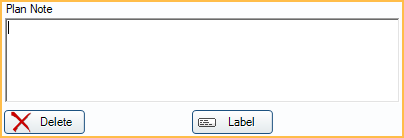
Label: Print the insurance carrier name and address on an individual mailing label.
Delete: If the plan has only one subscriber, this will delete the plan (remove it from the Insurance Plan List). If there are other subscribers, the plan will only be removed from this subscriber and associated family members on the plan.
Saving Changes
The radio buttons at the bottom of the window determine if Fields that Trigger New Plan create a new insurance plan or affect all subscribers.

For details on using the options and how to create or update insurance plans, see Change Insurance Plan Information
Troubleshooting
When adding a fee schedule or changing a plant type, I get the following warning: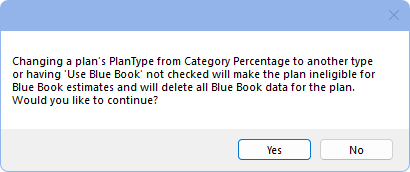
When Blue Book is enabled, adding a fee schedule to a Category Percentage plan will delete the Blue Book data for the plan. Only click Yes if this change is intentional.